New order received
A customer just selected a plan

We Support All devices, if you don't find your device here please contact us and we will send you instructions on how to use IPTV on it.
IPTV Smarters is an incredible video streaming player which is developed especially for end-users that want to be provided with the facility to watch live TV, VOD, Series and TV Catchup on their Smart TV. This video player app is easy to use and yet highly efficient with a powerful player, attractive and very impressive layout and most importantly user-friendly.
Compatibility: Compatible With All Devices
Step 1 : Search for the IPTV Smarters Pro to install, or use this link to download the apk: https://www.iptvsmarters.com/smarters.apk
Step 2: Log in the Application with your subscription details i.e. Username, Password, Portal URL
For Samsung Smart TV
Step 1 : Press the Smart Hub button from your remote.
Step 2 : Search for the IPTV Smarters Pro to install.
Step 3 : Log in the Application with your subscription details i.e. Username, Password, Portal URL.
For LG Smart TV
Step 1 : Press the Home button on the remote & Go to LG Content Store.
Step 2 : Search for the IPTV Smarters Pro to install.
Step 3 : Log in the Application with your subscription details i.e. Username, Password, Portal URL.
1: From the home screen of your device, hover over the Find option.
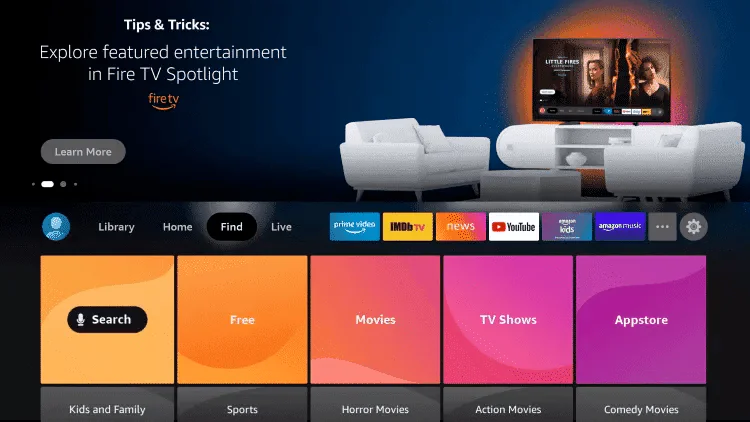
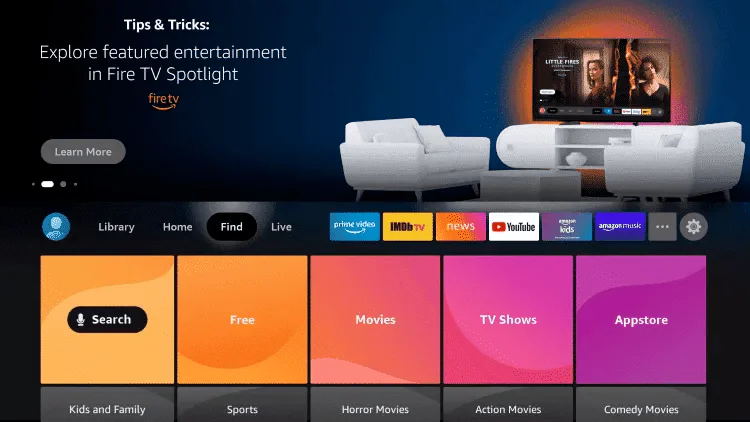
2. Click Search.
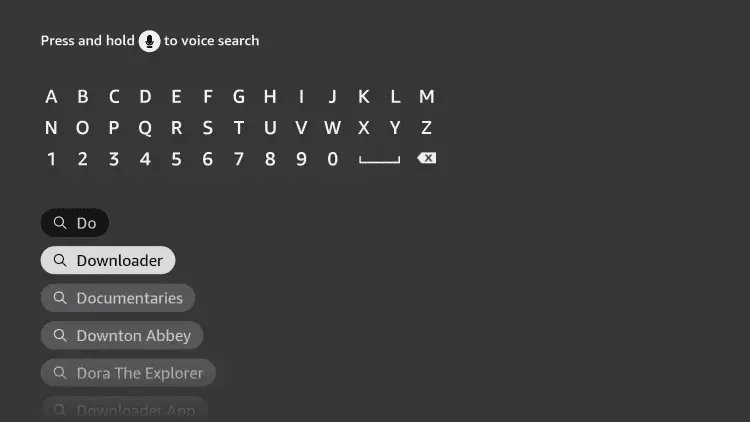
3. Search for and select Downloader.
4. Choose the Downloader app.
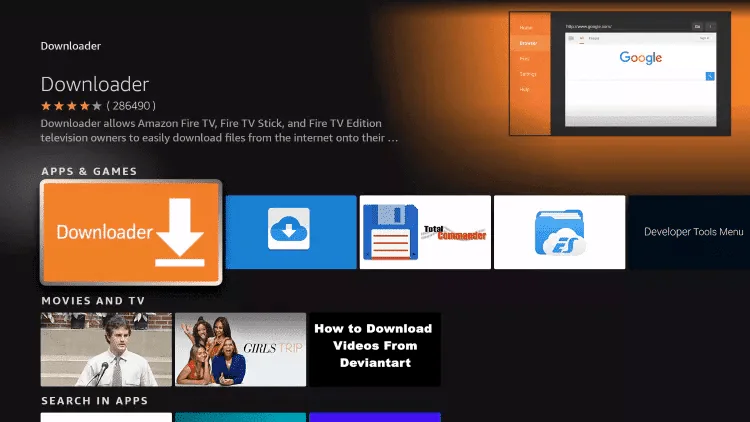
5. Click Download.
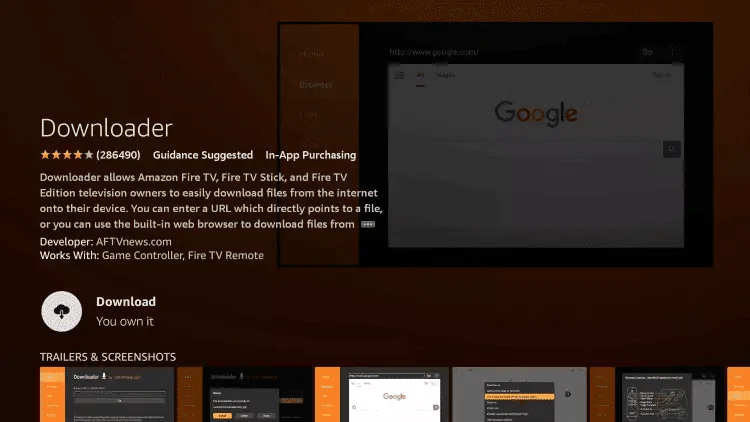
6. Once the app finishes installing click Open.
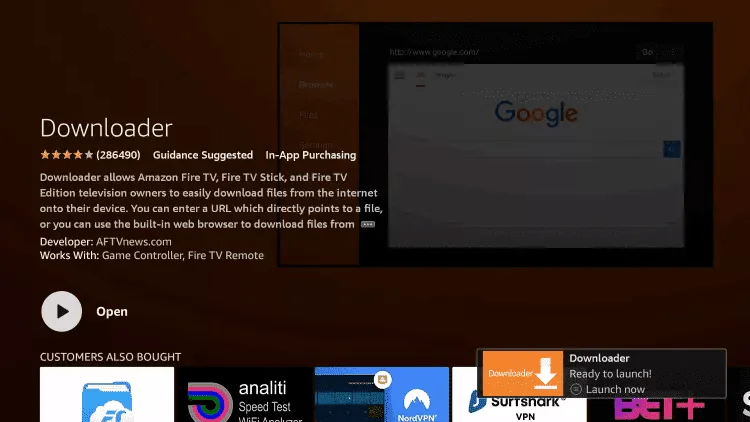
7. Return to the home screen and open Settings.
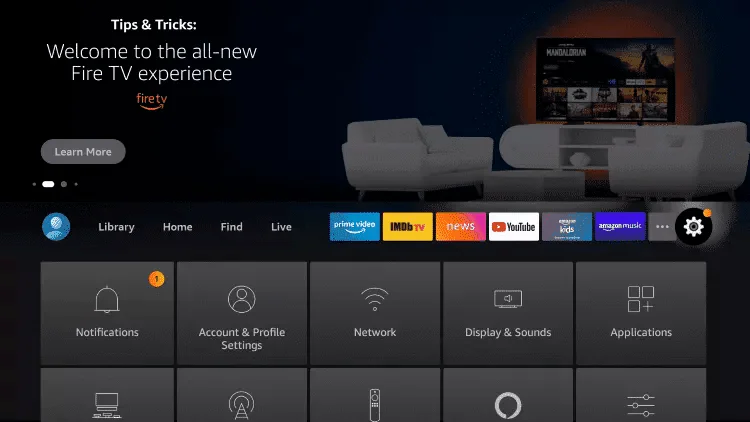
8. Click My Fire TV.
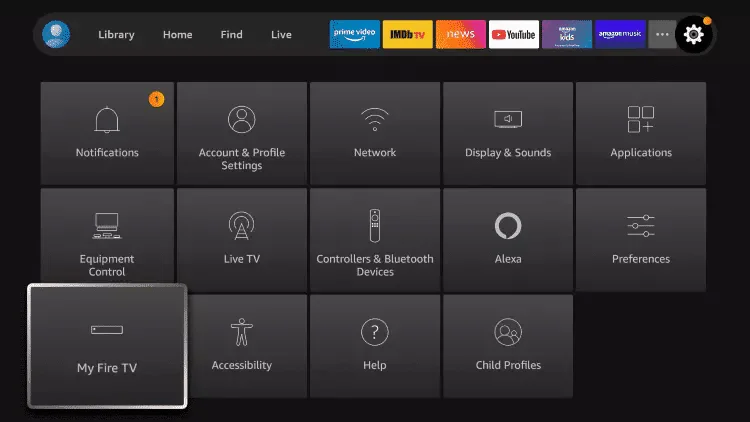
9. Choose Developer options.
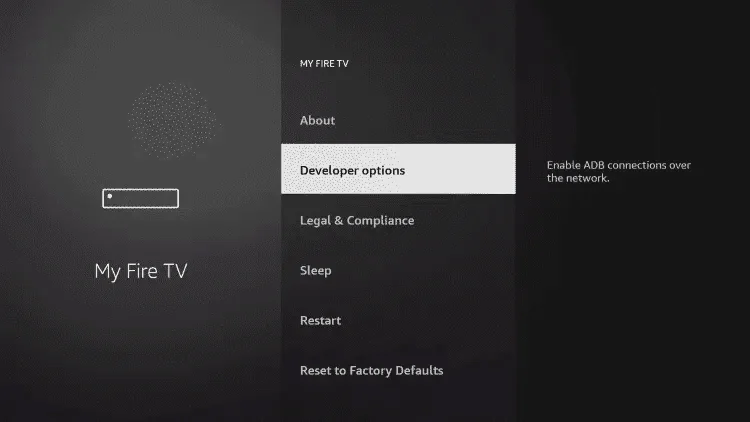
10. Click Install unknown apps.
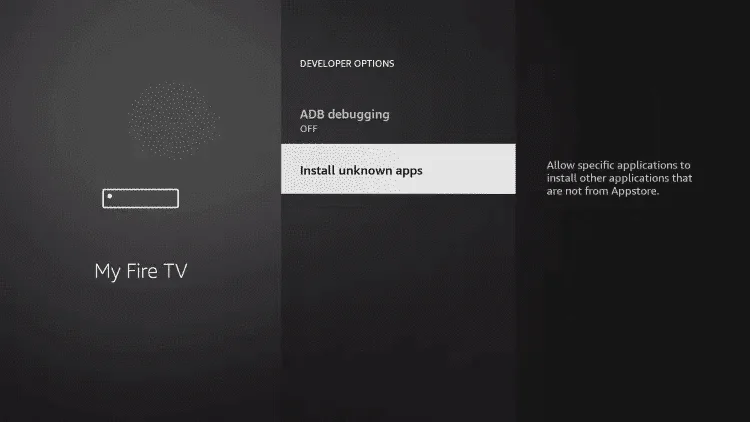
11. Find the Downloader app and click it.
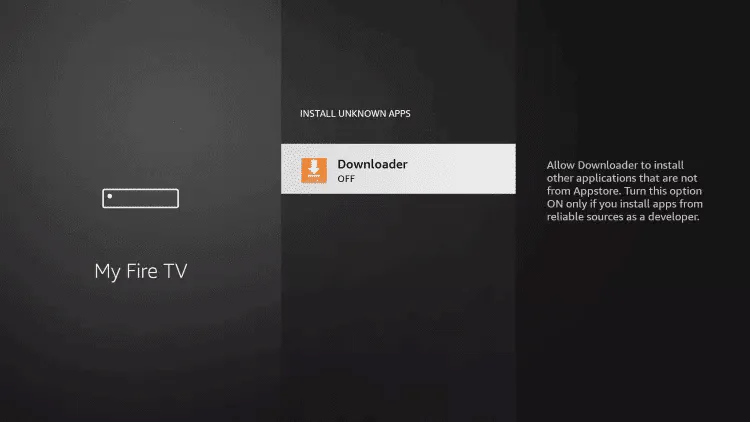
12. This will turn Unknown Sources to On for the Downloader app. This will enable side-loading on your device.
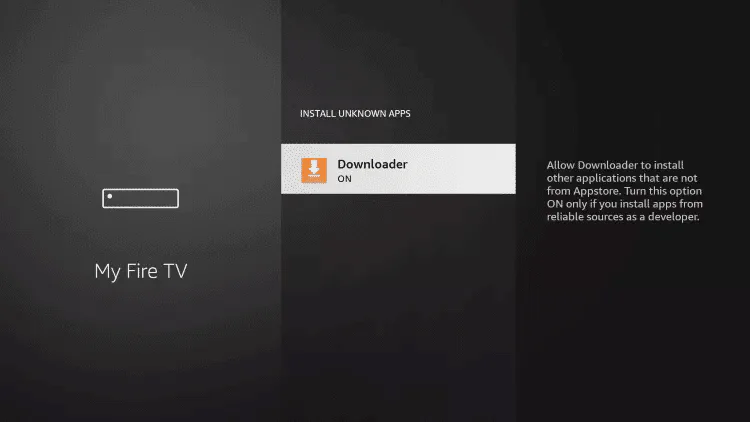
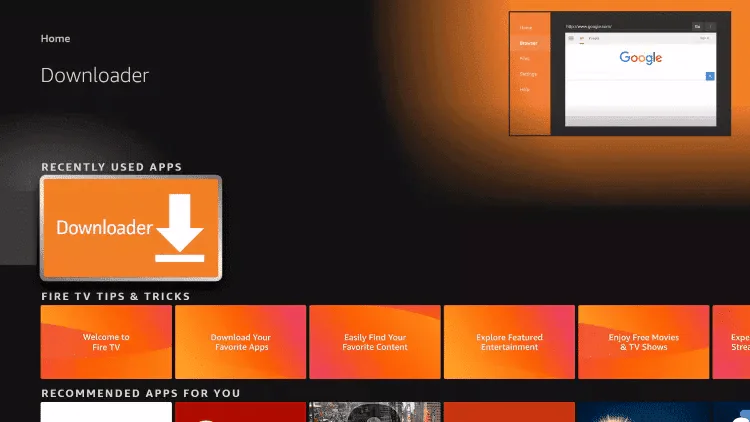
13. Launch Downloader.
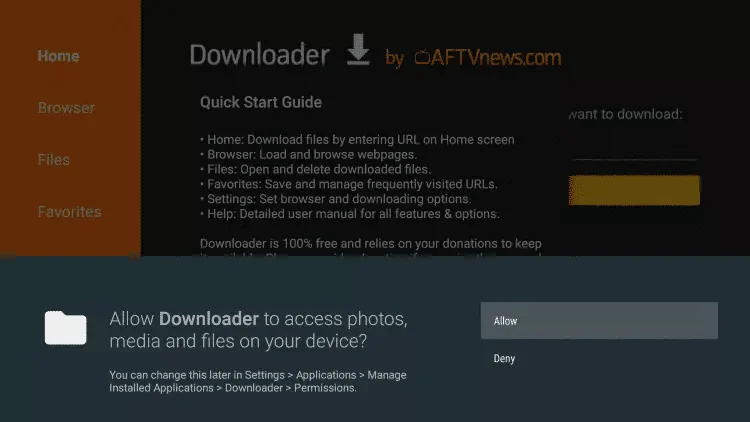
14. Click Allow.
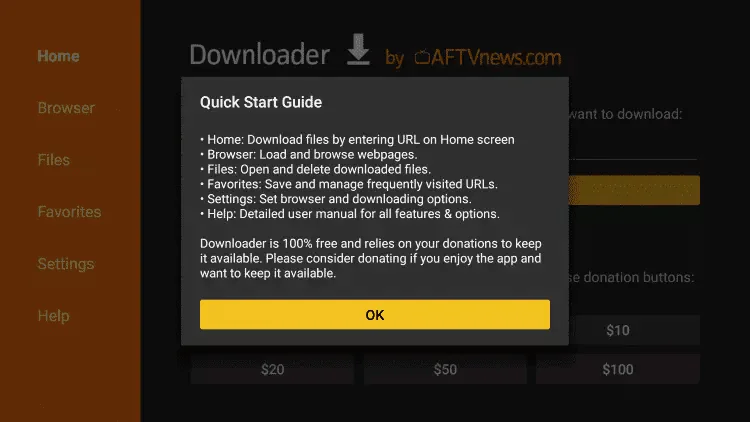
15. Click OK.
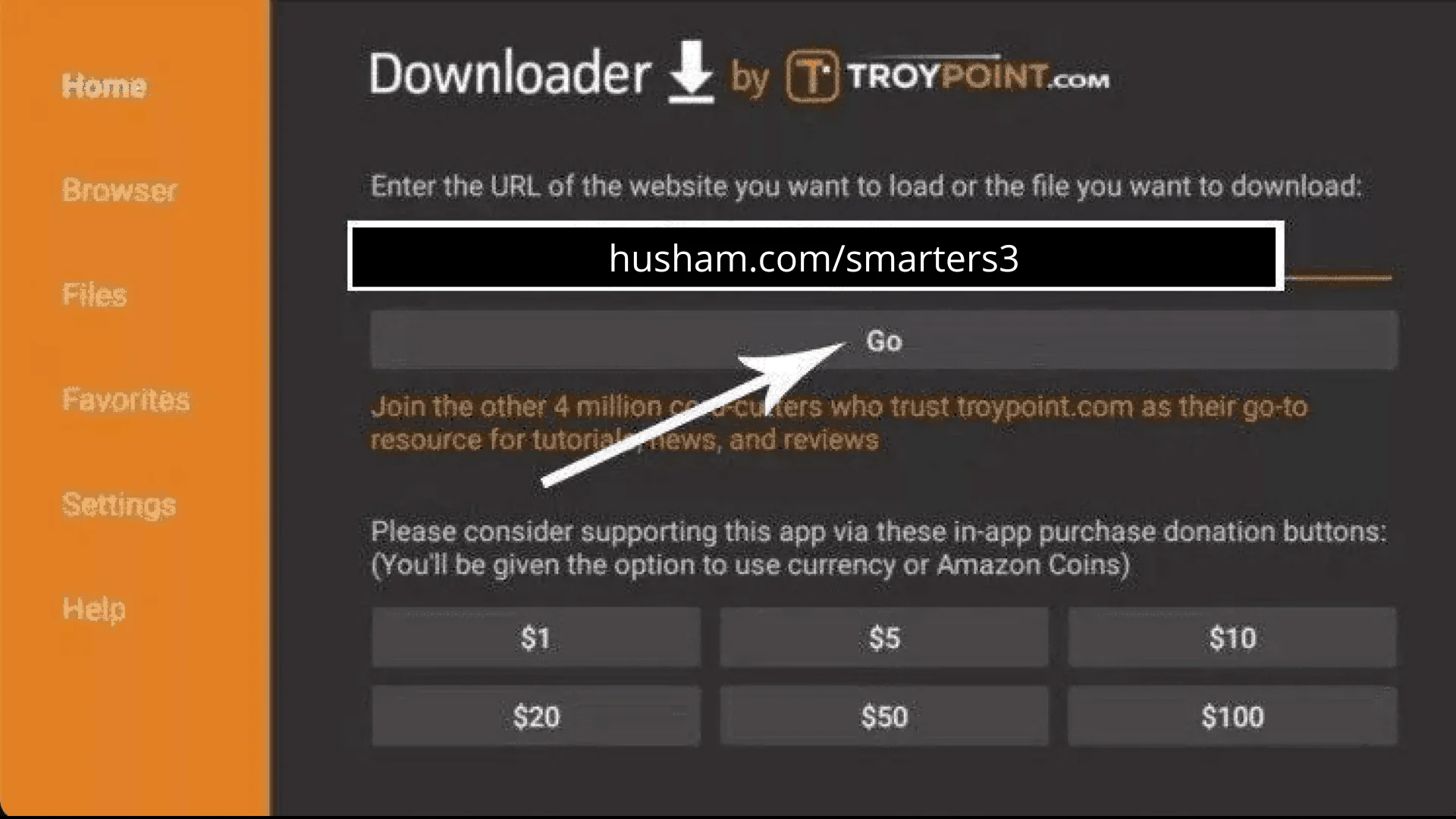
16. Type the following URL exactly as shown here: https://www.iptvsmarters.com/smarters.apk and click Go.
17. Wait for file to download.
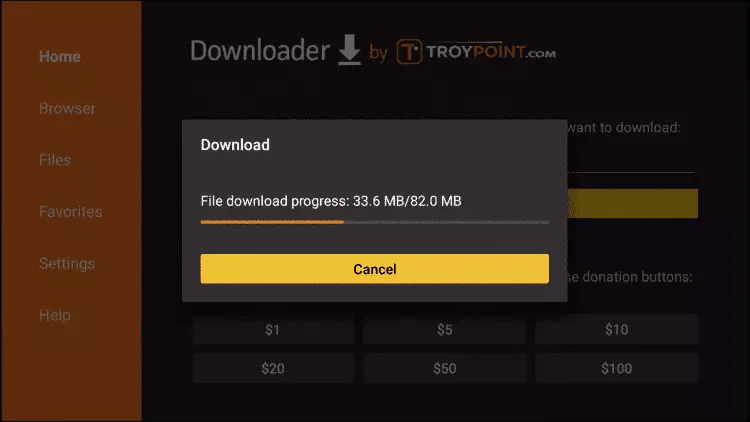
18. Click Install.
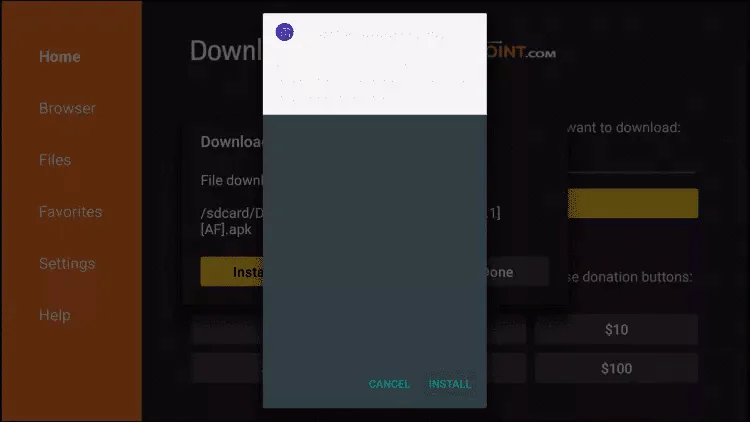
19. Click Done.
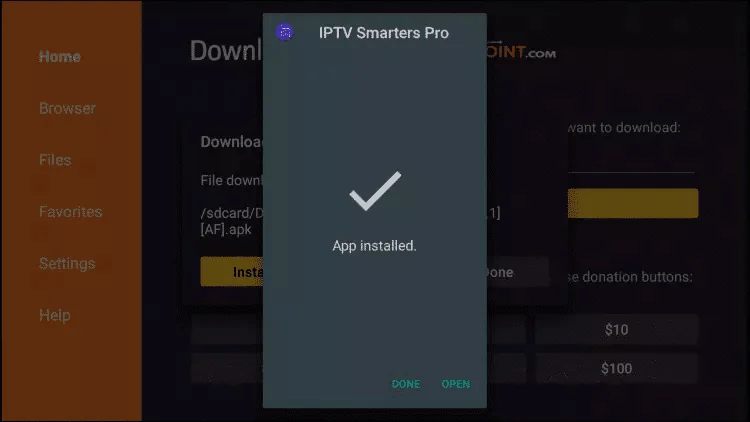
20. Open IPTV smarters then select Login with Xtream codes api.
21. Enter the login details that we sent you via Whatsapp or Email or Chat
FOR TIVIMATE
1. Type the following URL exactly as shown here: https://tivimates.com/tiviapk and click Go.
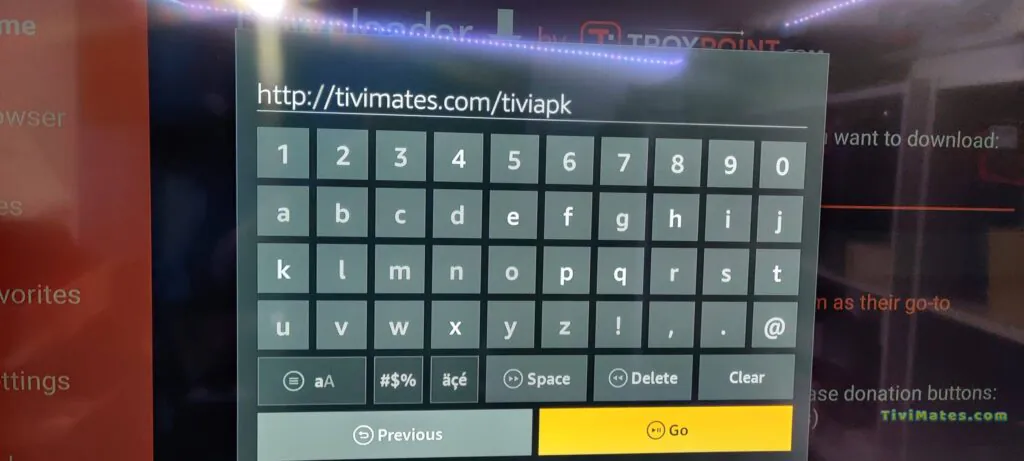
2. Wait for file to download.
3. Click Install and once the installation is completed. You can open the app.
4. Click "Add Playlist" then choose "Xtream codes"
5. Enter the login details that we sent you via Whatsapp or Email or Chat
Step 1: Start by downloading IPTV Smarters app through this URL https://www.iptvsmarters.com/smarters.apk
Step 2: Open the app once downloaded and Enter the login details.
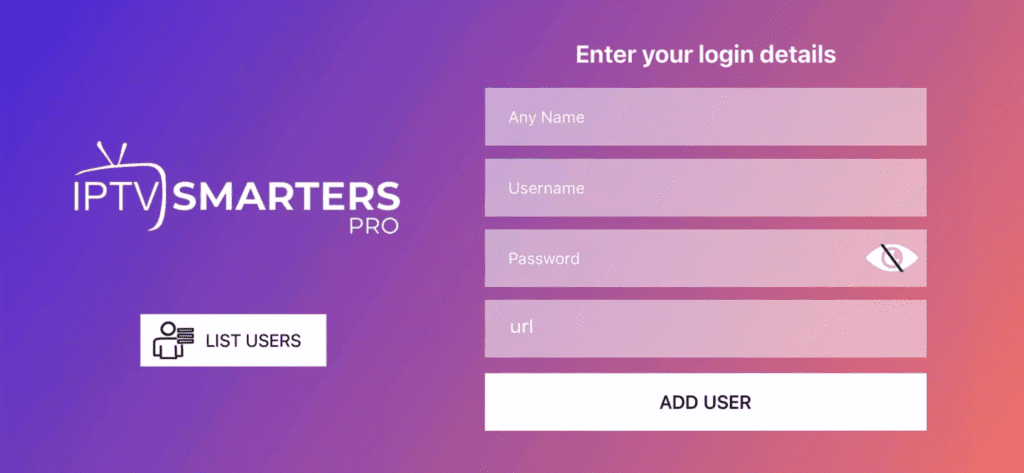
Step 3: Enter the login details that we have provided you after you get a subscription with us. Now Click on "ADD USER" to proceed to the next section.
Step 4: Wait some seconds.
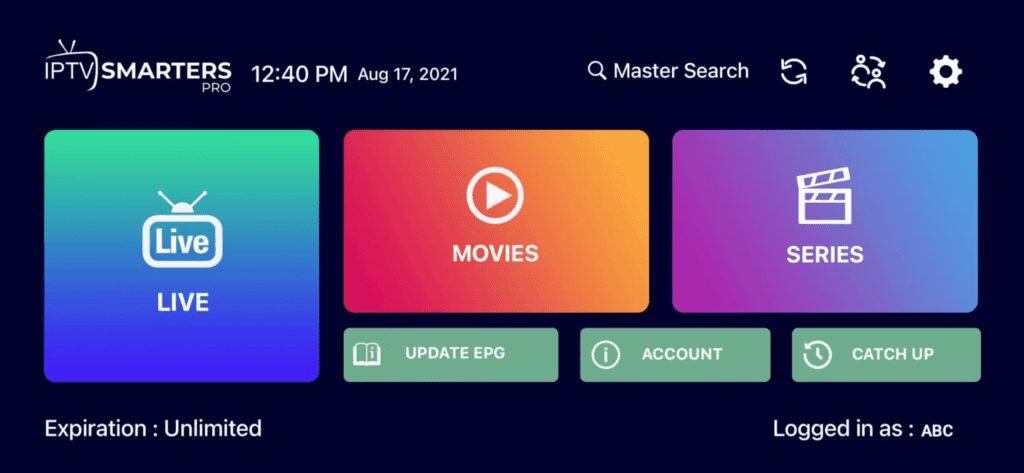
Step 5: Now you must select the channel group that you want to watch and proceed to the next section.
Step 6: Now you must click on the channel name and then double click on the small screen to turn into full screen as the final step.
This tutorial will help you to get a better understanding on how to watch IPTV on your STB Emulator. The following Set-top boxes are compatible with it. 'STB Emulator' can emulate the following IPTV set-top boxes.
| MAG 200 |
| MAG 245 |
| MAG 250 |
| MAG 260 |
| MAG 270 |
| MAG 275 |
| Aura HD |
You can navigate to Settings, Setup, System Network Device Adapter Settings. Then you can copy the IP address.
Here are the setup instructions for Openbox
If you still have any issues, simply restart Wi-Fi router and Openbox
 Device
 Device
 Device
 Device
 Device
 Device
 Device
 Device
 Device
 Device